Turn screen text into
Reply to emails
Summarize documents
Translate messages
Understand images
Draft from anything on screen
The macOS menu-bar utility that captures any screen region, reads the text with OCR or sees it directly with Vision, and generates a polished draft — all in one shortcut.
Designed for people who write all day: support replies, update notes, summaries, and translations without breaking flow or switching apps.
Everything Kriya does
Capture Anywhere
Works in any app — Messages, email, documents, code editors, web pages. If you can see it on screen, Kriya can read or understand it.
Smart Presets
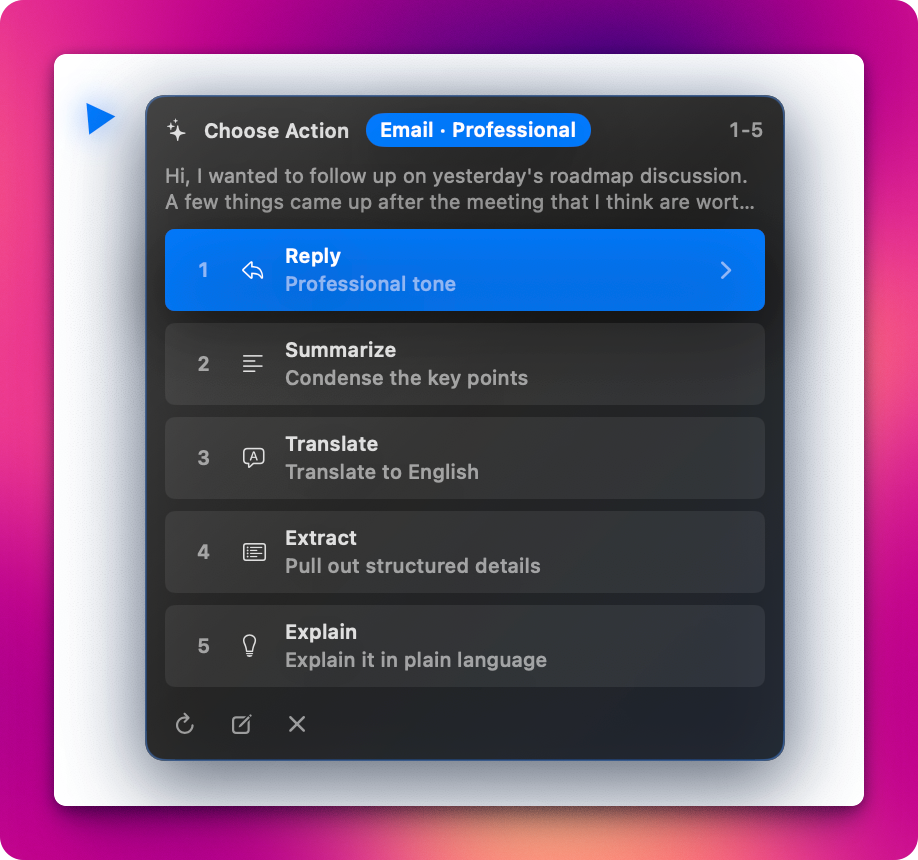
Reply, Summarize, Translate, Extract, Explain — with context-aware recommendations. Email gets Reply, documents get Summarize.
Auto-Paste
Detects editable fields and pastes your draft directly. Never sends automatically — you’re always in control.
Refine & Iterate
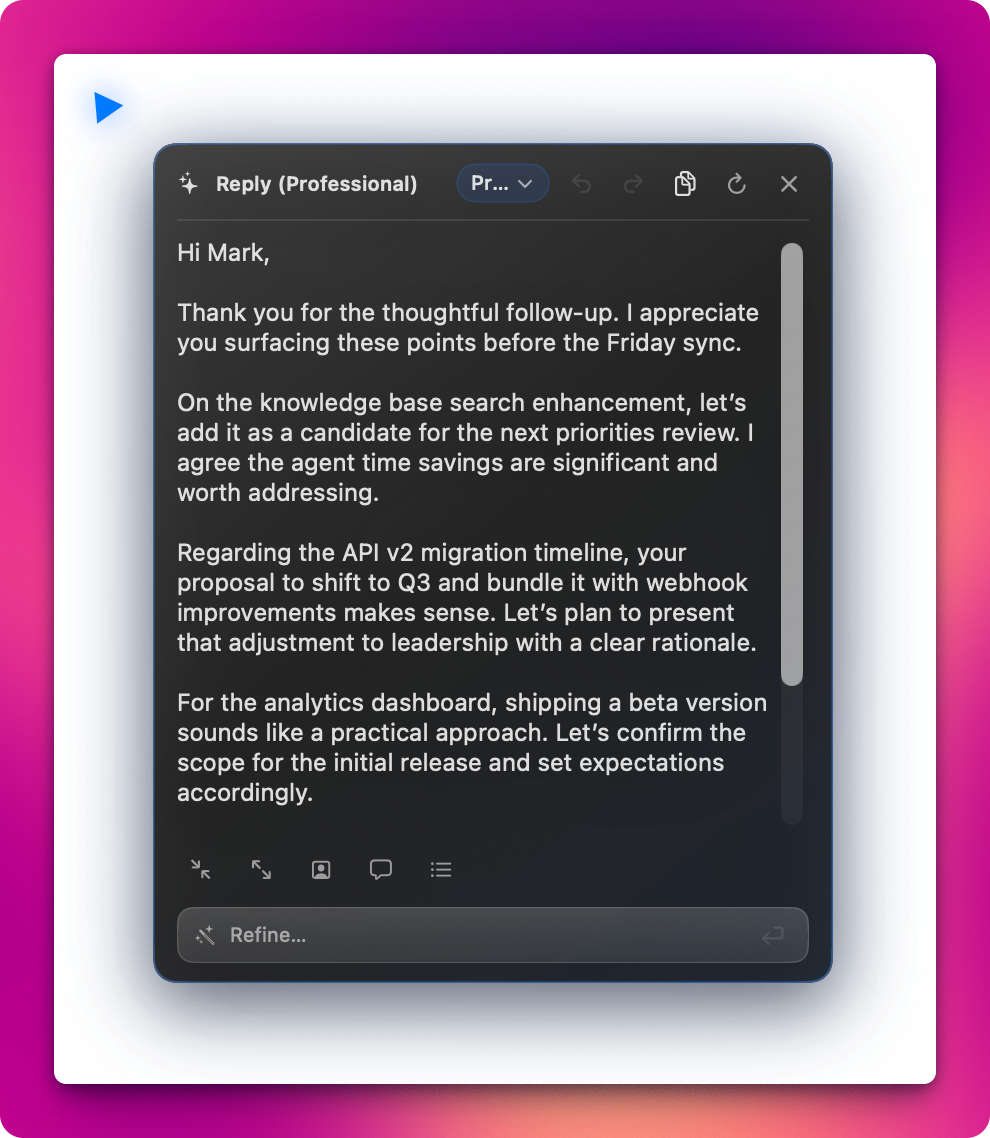
Shorter, Longer, More Formal, More Casual, Bullet-ize — or type freeform instructions. Undo/redo through history.
Tone Switching
Reply has four tones: Professional, Casual, Short, and Polite Refusal. Switch after generation to re-run with a different style.
Your Voice
Pro: paste 2–5 past replies per tone, and Kriya learns to write like you. Add a profile with your name, role, and sign-off.
Cloud or Local
Connect to OpenAI, OpenRouter, or any compatible endpoint — or run entirely on-device with Apple MLX. No API key needed for local mode.
Custom Hotkeys
Bind direct hotkeys to specific presets. One keystroke to capture and generate without the picker.
Privacy First
Captured pixels are transient and cleared after processing. API keys stored in macOS Keychain. Local MLX mode means no data ever leaves your Mac.
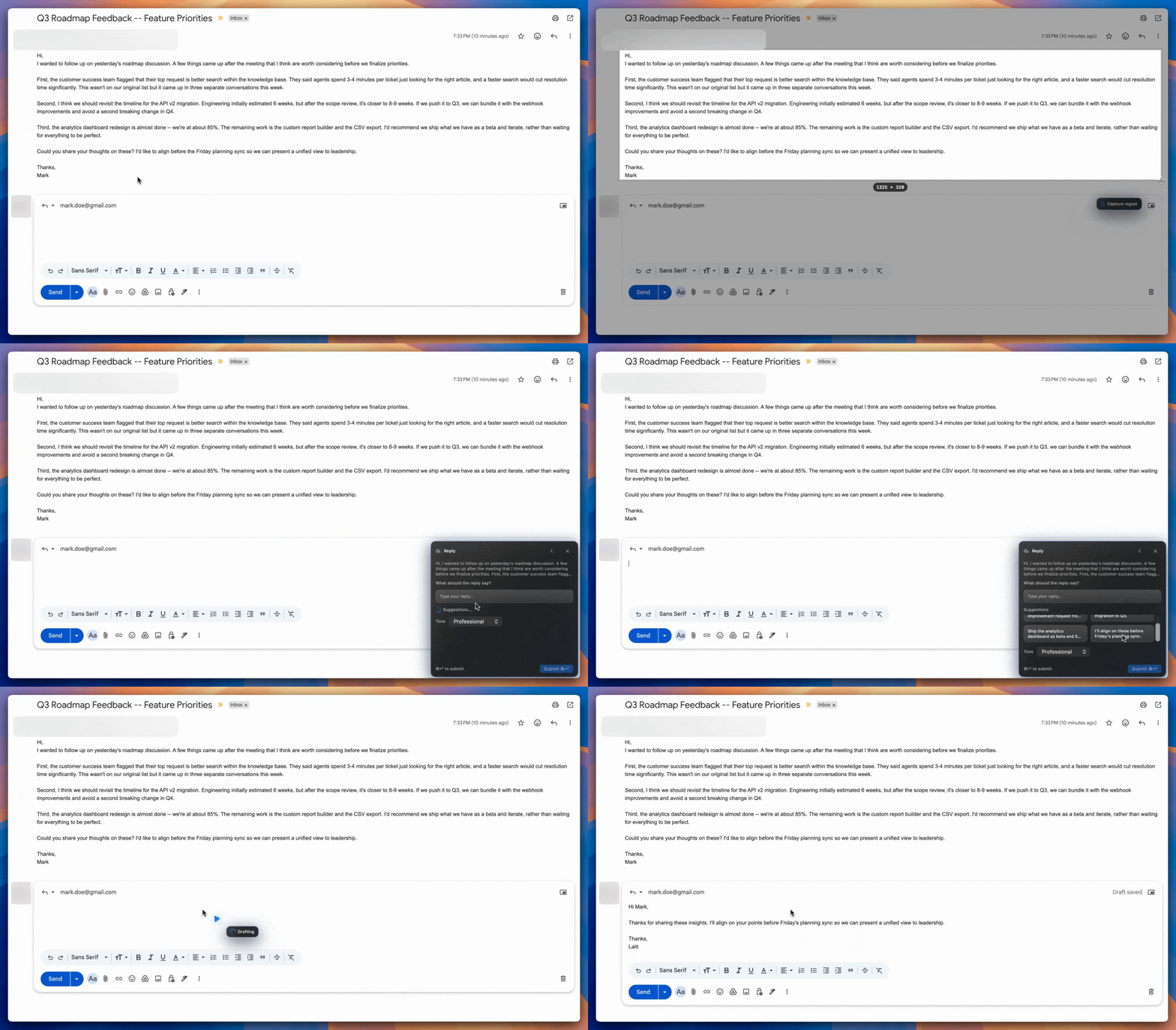
From screen to draft
Five steps, all at your cursor. No windows, no app switching.
Press the shortcut
Cmd+Shift+K triggers capture globally from any app. Customize in Settings, or bind a direct hotkey to a specific preset.
Select the region
A dimmed overlay appears. Drag a rectangle around the text or image you want — Kriya captures at native Retina resolution.
Pick a preset
The cursor companion shows a preset picker next to your pointer. Kriya recommends the best preset based on context.
Generate
Run via your configured cloud API or local MLX mode. Watch the status bubble: "Thinking..." then "Drafting..."
Output
If the focused field is editable, Kriya auto-pastes. Otherwise, a pinned result card appears with Copy, Refine, and Regenerate.
Cloud or on-device. Your choice.
Cloud Mode
Connect to OpenAI, OpenRouter, or any compatible /v1/chat/completions endpoint. Use the latest models with your own API key.
Local Mode (MLX)
Run entirely on your Mac with Apple's MLX framework. No API key needed, no data leaves your device. Choose from 8 pre-configured models across text and vision.
Get more out of Kriya
Quick capture
Press Cmd + Shift + K from any app to start capture. Customize the shortcut in Settings.
Direct preset hotkeys
Bind a hotkey to a specific preset in Settings to skip the picker entirely. Great for high-frequency actions like Reply.
Free to start. Pro when you need it.
No subscriptions. One-time purchase, lifetime license.
Everything you need to capture, read, and generate drafts from your screen.
- Full screen capture and OCR
- 5 built-in presets (Reply, Summarize, Translate, Extract, Explain)
- Cloud API + Local MLX generation
- Auto-paste into editable fields
- 10 refine/regenerate actions per day
Unlock the full power of Kriya with custom presets, unlimited refinements, and personalization.
- Everything in Free
- Create and import custom presets
- Unlimited refine and regenerate actions
- Direct hotkeys per preset
- Context-aware defaults (Email, Chat, Document, Code)
- Personalization: user profile + writing samples
One-time lifetime license. Enter your purchase email to start secure checkout.
Frequently Asked Questions
Is Kriya free?
Yes. Kriya can be used for free indefinitely. The free version includes full capture, OCR, 5 built-in presets, and 10 refine/regenerate actions per day. Pro unlocks custom presets, unlimited refinements, direct hotkeys, and personalization.
Which macOS versions are supported?
Kriya requires macOS 26 or later.
Does Kriya send my data anywhere?
Captured pixels are transient and cleared immediately after processing. If you use cloud mode, your text or image is sent to your configured API provider for generation. Local MLX mode means no data ever leaves your Mac. API keys are stored in macOS Keychain.
What permissions does Kriya need?
Two: Screen Recording (to capture text) and Accessibility (to detect editable fields and paste). Both are guided in first-run onboarding and can be revoked in System Settings at any time.
Can I use my own API key?
Yes. Kriya supports OpenAI, OpenRouter, and any compatible /v1/chat/completions endpoint. Configure your base URL, model name, and API key in Settings.
How do I activate Kriya Pro?
After purchase, you’ll receive a license key via email. Open Kriya → Settings → License → Enter Key. The key is a one-time lifetime license — no subscriptions.